Showing posts with label Linux. Show all posts

Sunday, October 4, 2015

Linux, BSD Unix - Some of what I've Learned.

v0.3
04 Oct 15

You have a superseded desktop or laptop gathering dust.  Perhaps you have an itch, or you have a somewhat energetic and inquisitive young one who you would love to see entertained.

First off, if you just want to have a desktop with all the bells and whistles provided, then Linux Mint or Ubuntu are for you.

http://distrowatch.com/dwres.php?resource=major

If, however you want to dig a bit deeper then I have a story for you.  Navigating the Linux and BSD maze is a little like an adventure game, full of treading in cow-pats and "oh-wow" moments - and if you are caught off guard, full of career opportunities.

Before I start though, go to Wikipedia and look at the "Unix", "Linux", "Debian", "Slackware" and "FreeBSD"pages.  Having a look at "Distrowatch" wouldn't hurt either...

 So, what is the difference?  Which one to choose?  Here are a few random thoughts I have jotted down that you might find useful.

BSD and Linux

The first thing is that the "BSD" systems are direct descendants of the original Bell Labs UNIX.  If you want to run a Unix system, then choose one of these.  BSD Unicies are developed by a dedicated team to ensure everything works together.  Linux or more correctly GNU / Linux is a  collection of software pieces that together approximates a Unix-like system.  Whilst a person experienced in Linux would find a BSD system familiar, there are distinct differences.

Debian and Slackware

For many years, I ran both Debian and Slackware on various machines at home.  They are each excellent Linux distributions being the two oldest, and the basis for so many other Linux flavours.  One significant thing is that support for desktop features is far stronger in Linux than BSD.  Skype and Flash are two examples, although that "support" is not exactly strong.

Slackware is a KDE desktop-centric distro with no native support for Gnome or dependency checking.  It needs some tweaking of text configuration files - somewhat like Unix.  Debian is Gnome-centric and has excellent administrative tools with extensive dependency checking.

PC-BSD and FreeBSD

Even though I have a lot of respect for these Linux flavours, I now use FreeBSD - so how did that come about?

I moved from Slackware to Debian to get the admin tools and their integrated development cycle, but then gradually I started peeking at PC-BSD for its easy intallation and powerful ZFS file system.  Then Linux changed with many distros going for a new initialisation system called "systemd" which did concern me a little.  I thought of going back to Slackware but then tried PC-BSD for a bit and fell in love with Jails and ZFS.

Two things destroyed my PC-BSD experience.  Upgrades between versions were problematical, though I suspect that has been largely fixed.  The real killer was that it started mis-behaving after a graphic card replacement and then just plain refused to install.  FreeBSD installed fine, which was puzzling since PC-BSD is simply FreeBSD with lovely desktop polish and ease-of-use.

FreeBSD

Why do I like FreeBSD?

Unlike Linux, FreeBSD has a simple base installation.  It is a complete text environment with the Kernel and Userland (utilities) to allow you to use it as a C development platform.

All packages added by you the user are added under " /usr/local ".  I love this for two reasons.
  • This allows sensible partitioning which I have used on an Asus eeepc to install a graphical environment.
  • Updates are easy to understand and perform.  "freebsd-update" updates the base system and "pkg update" updates the user installed packages.
In order to make the most of the power of FreeBSD then the 64 bit version is preferred as the ZFS file system is not as stable on the 32 bit version and so the standard UFS file system is preferred on 32 bit.

ZFS - what is that?  Magic.  Pure Magic.

And for "Steak Knives" you get Jails.  A jail is a type of virtualisation with shared resources - those of you who know about jails will cringe at this but to get the idea across, that will do.

Don't expect to be up and running with FreeBSD in an instant.  Do some reading and watch some Youtube videos.  It is not hard to configure (there are two really important config files - /boot/loader.conf and /etc/rc.conf) and once you get the "zen" of it all it flows easily.

I really like FreeBSD for its stability and consistency - the more I use it the more I love it.


Later ...

Friday, June 20, 2014

Debian, PulseAudio and Skype

20 June 2014
v0.2

As I said in my previous post, I've upgraded my Father's computer to Debian Jessie, and in the process had a few problems with desktops, Skype and Audio (btw pulseaudio and Skype are also a problem in Wheezy).  I found many people having a problem getting sound on Skype and it was to do with PulseAudio.

However

Some research and thinking has somewhat cleared the mists for me.  PulseAudio presents itself as .. itself to sound device settings, rather than the individual device.  For example, you cannot tell which microphone you have selected in Skype when using PulseAudio.  Initially I found that Gnome 3 was the only desktop that enabled you to select the microphone input device and all was well.

But

Checking in the Debian package repository, there are several PulseAudio controllers, one of which is the PulseAudio System Tray .. pasystray.  THIS application lets you do the selections and it retains the selection across reboots, though only on the same desktop.  I've only tried it on lxde so far and have it as a startup application which appears as a dark speaker icon in the taskbar.  I'd suggest that it is just a matter of adapting it to whichever desktop environment you wish to use ....


Later....

Wednesday, June 18, 2014

Dad's Debian Install

June 18 2014
v 0.2

Of Windows, Skype and Printers

My Father has had a Pentium 4 3.2 gig IBM computer for a few years now.  It has 1 gig of memory and came with Windows XP installed.  Of course he never did software updates and it has not helped that I live on the opposite side of the Continent to him so I have forever been reminding him that Windows XP is the devil and that it will bit him if he is not careful.  I've had limited success training him NOT to use it for sensitive work.  My preferred option is for him to update, however he is adamant that this machine is fine and he does not want a new piece of hardware.

Well about a year ago, I installed Debian Wheezy in a dual-boot configuration and eventually convinced him to at least only do his banking and other critical work using Linux.  It has been unfortunate that Skype has not been functioning - no microphone detection and I was unable to help fix the problem, so he used Skype from the Windows side.  The other major problem was the old Epson printer / scanner just wouldn't speak to Linux.  It said it had installed, but just refused to function.

I've been visiting for the last week and one of the tasks I set myself was to get him set up safely so that he'd be less tempted to use Windows XP - he finally realised there were no more security updates, however like most people just does not understand how he can be badly burnt by malware.  The two major things I needed to do were to get Skype functioning and the Printer / Scanner on-line.

My starting point was Debian 7 Wheezy with Gnome 3.4 classic.  (I find this a very pleasing setup by the way ... elegant and fast)

Skype

When first sitting down to use Skype on Wheezy, I found everything worked except the microphone (combined with a logitech webcam which WAS detected).  Skype was at version 4.2 for me.  When I checked the sound options, I found that pulseaudio was the only microphone option I had.  I googled and found various recommendations for configuration file edits, but none worked.  I subsequently found that there is a bug in Skype that needs these edits, however this did not work for me.

Of course there was a simple fix.  The Gnome 3 settings have a "sound" icon where you can select the input device.  VICTORY! Gnome is the only desktop / manager that I've found that allows you to do this and Skype has ONLY worked for me in Gnome 3.

Printer / Scanner

I figured I'd just go and replace his old printer.  They are cheap and much improved on a few years ago.  I figured on an HP 8600 which I have found to be really great - particularly for scanning where you can scan double sided multiple sheets into a pdf file.  You can also save the scans/pdf to a memory card/stick, which is particularly simple.  This was not to be and I arrived home with an HP Deskjet 1510 having purchased it for the princely sum of $28.  "Nothing can go wrong now!"

Why did I go for an HP?  There is a linux support package called HPLIP that I have found makes integrating HP printers a breeze.  I simply went with what I know.

But of course there is a catch.  The version of HPLIP with Wheezy is too old for this printer.  Backports?  Nope.  I DID get the printer installed with the Gnome 3 setup though and it worked like a bought one.  The scanner though was not detected.  Sigh.

Distribution Upgrade

After some thought and looking at the HP support site, I thought that maybe it was time to bite the bullet and put the next Debian version Jessie (current testing branch) on and go from there.  This was more than I'd intended, but I figured I was probably going to have to do it eventually.  After backing up the files in the appropriate directories, I thought I'd give the in-place upgrade a whirl.  It was only partially successful and in retrospect I probably should have un-installed all but essential packages before progressing, however I took it as part of the learning experience.

Upgrading with Jessie DVD / CD ... 64 / 32

As luck would have it, I had a Jessie DVD with me and thought that would be perfect to use to upgrade, so off I went blowing away the old clagged installation.  Everything was going smoothly as I've found Debian installs generally go when one part of the installing packages caught my eye.  I was installing an amd64 Debian onto an i386 machine!!!  Bother.  But .... why was it installing then?  My initial urge to cancel and work out another plan gave way to curiosity so I let the install complete, reboot, and ... well .... well.... it works beautifully.  I had a smoothly working 64 bit Debian install on a Pentium 4 machine.  I'm left wondering if this was owing to the Debian "multiarch" characteristics I've read about or if the chip was secretly 64 bit.  Installing Skype proved a challenge however achievable (skype is only 32 bit and needs 32 bit support activated in 64 bit Debian), although the dependencies became too much of a bother for me so .. once again I decided to install it properly with a 32 bit version.  I downloaded and burnt a 32 bit Netinstall CD on another machine and tried again.

In trying to get both the HP printer/scanner and Skype working on the setup, I was getting driven nuts as things just weren't working.  After a few hours and somewhat dejected after trying various desktops I gave up for the evening.  Not happy.  (I subsequently found I was easily able to sort things after a night of my brain mulling over the problems).

Final Configuration

Whilst the default desktop for Debian Jessie is now Xfce, I have found that the ONLY desktop that conveniently does what I want this machine to do is Gnome 3 (3.8).  I did try putting some icons on the desktop for home and trash etc, however this killed the wallpaper, so I went back to the default settings.

Of course, how do you install Gnome3?  You can look in "Synaptic" however using the command line, it is simply:

# aptitude install gnome

Here is what I have and I am quite happy with it - it took a while to discover however there is nothing difficult about my setup:

Debian Jessie 3.8
GDM3 login manager
HPLIP and HPLIP GUI installed
HPLIP GUI made visible using the Main Menu editor
Skype works fine with the microphone selected in the Gnome Settings.
Printer installed
Scanner works fine - detected by scanning programs.


It works.
I am happy.

Saturday, June 8, 2013

Debian Wheezy - Virtualbox Shared Folders

v 0.2
8th Jun 2013

One thing I've never found very satisfactory is the method of organising shared folders between a Linux guest and the Host systems in Virtualbox.  The instructions I've read have never seen to be satisfactory.  Until now.  In this example, I'll use a Windows host and a Debian Wheezy guest system, however it works exactly the same on my Macbook for OSX.

  • First, add a shared folder to the Virtualbox manager for the VM.  I added "C:/Users/geoff/share" .  Make sure "automount" and "make permanent" are ticked and "read only" NOT ticked for bi-directional sharing.
  • Within the Wheezy guest, install the package " gnome-system-tools ".  This gives you additional administration tools, such as group management.
  • Open "Applications | System tools | Administration | Users and Groups"
  • Manage Groups
  • Scroll down till you find the group " vboxsf "
  • Highlight it and click "Properties"
  • You will see a list of usernames in the box "Group Members" - tick the users you wish to be able to use the shared folder.  Authenticate the action with the root password.
  • Close the programs and Reboot.
  • Log in, and open Nautilus - navigate to the " /Media " directory.  You will see a directory named (in my case)  " sf_share ".  (the directory is always named " sf_ ...... " ) .  Any file you now place in that directory in Host, will be shown when you open the directory in Guest.

Done!!


Later.

Thursday, May 23, 2013

Debian Wheezy - Install and Config of an OLD X31 Laptop - Part 2

v 0.2
23 May 13

Enhancing Wheezy.  I've often wondered what the magic formula was that when spoken would transform Debian and unlock its secrets.  Unfortunately, that formula is experience, finding those magic packages over time that will make it all so much easier for you.  First though, we have to learn about Debian mirrors.

Apt Sources

The heart of what makes Debian different is the system of software Mirrors, apt repositories and for Wheezy, the backports.  So, let's add the backports to the apt sources so that if later on newer software is added to this repository, we can install it.  (it is also worthwhile reading the instructions on http://backports.debian.org )
http://backports.debian.org/news/Backports_integrated_into_the_main_archive/

Open a root terminal from the accessories menu, change to the /etc/apt directory and then as root, edit sources.list:
# nano sources.list

add   deb http://ftp.debian.org/debian/ wheezy-backports main contrib non-free
        deb-src http://ftp.debian.org/debian/ wheezy-backports main contrib non-free

note:  pick the mirror closest to you for best performance ... I have ftp.au.debian.org

Iceweasel and Icedove

While we are here, why not make iceweasel the current release in phase with firefox?  Go to http://mozilla.debian.net  .

add  deb http://mozilla.debian.net/ wheezy-backports iceweasel-release  to your sources.list then ^O and return to save ^X to exit  (control O .... )

The iceweasel release repository has a keyring that identifies it as genuine .. you can download it from the website, or install it from the repository.

# aptitude update  (it will complain that it doesn't have a keyring for the mozilla archive)
# aptitude install pkg-mozilla-archive-keyring

To get iceweasel installed, you will have to update from the command line after you have saved and exited from nano as so (note, it MUST be the command line, Synaptic won't work for the initial install):

# aptitude update
# aptitude install -t wheezy-backports iceweasel

(note - aptitude is probably preferable to apt-get as it does exactly the same thing but keeps track of dependencies installed on the machine a little better).

There .. Iceweasel 21, the current release.  The webpage at mozilla.debian.net has instructions for icedove (Thunderbird) as well.

Gnome Workspaces Tip

I had both Iceweasel and an open terminal in the same workspace.  I dragged the Iceweasel icon in the workspace to another, so now I have terminal in one and Iceweasel in another.

Lxde

I wanted to see what a difference a lighter desktop made, so thought I'd install lxde.  Once again, in a root terminal:
# aptitude search lxde     (to find the correct package to install)
# aptitude install lxde

Changing the desktop background in lxde - click both mouse buttons on the desktop for the menu (it should just be the right button but for some reason on my X31 I needed both).  I changed the wallpaper mode to "Center on the Screen" to give a nicer look to the default artwork.

Other Items of Interest

Synaptic is a generally more convenient way to install packages and gives an easy way of exploring the entire software collection.  It is installed by default.  Note that you can't use it to do the initial install of things from backports, only subsequent updates.

  • nautilus-dropbox  - this adds Dropbox and nautilus integration. A dropbox menu item is installed in the internet category ...
  • ttf-mscorefonts-installer - Ms Truetype Core Fonts - install these to get nicer fonts in the web browser.
  • BUM  Boot Up Manager manages init processes
  • rcconf  Another Boot process manager

Default artwork for Debian - look in /etc/alternatives

LibreOffice

The libreOffice website has an installer for debian packages for the up-to-date suite.  BUT it is also in wheezy-backports

http://linuxg.net/how-to-install-libreoffice-4-0-3-on-debian-7-wheezy-via-backports-ppa/

You have already put the backports into your sources.list .. so ..

# apt-get update
# apt-get -t wheezy-backports install libreoffice

Installing via Backports - A Note

Once more ..

When you first install a package via backports, you have to use the command line and " -t " to activate the package.  Once you have done that then the new version will be tracked in synaptic etc and update when a new package becomes available.

What packages are there?  Well, the only way I've worked out so far is to look through the package pool and identify new packages.  For example, Gnome 3.8 is available in backports should you wish to install.  The backports packages don't appear in Synaptic till you install them via aptitude / apt-get

Look at this in your browser:    ftp://ftp.debian.org/debian/pool/

Skype

Skype is only available in 32 bit deb packages, so use of the "multi-arch" feature of Wheezy will be needed if you have a 64 bit install.  I'll not go into how to do this .. something for another time.  For a 32 bit install of Debian though:
  • Download the deb package to the machine.
  • Right click on it and open with the Gdebi package installer. (Gdebi also downloads and installs dependencies.)
  • Install
  • Type in the admin password when asked.

Cloud Storage

  • In addition to dropbox, there is SpiderOak, which has clients for both 32 bit and 64 bit Debian.  SpiderOak is noted for being encrypted so that even if they wanted, they would be unable to access your data.
  • Google Drive - Check out Insync  https://www.insynchq.com/linux
...


Later

Wednesday, May 22, 2013

Debian Wheezy - Install and Config on an OLD X31 Laptop - part 1

 v0.2
22 May 13


Now that Wheezy has been released stable, I thought it might be appropriate to re-visit the installation on an old computer, just to see how it goes.  I have an IBM X31 laptop that is about 10 years old.  It has a 1.4 centrino, 768 meg of memory and an ati mobility radeon gpu.  What I want to do here is to go through the installation of Wheezy, concentrating on the little bits that people may find unusual and need some re-assurance on, then discuss how I configured the system, what applications I loaded and generally how I made the system useable.  The present system on it is PCBSD 9.1.  I found that to be too slow for my liking, so back to Debian for the desktop.

Stupid is as Stupid does

Too often I hear unwarranted critisism of Debian which is almost always ill-informed and .. well .. just basically "stupid".  I recently saw a posting of someone highly critical of Debian because it would not install on any of their machines - there were no drivers for their network cards and it kept complaining about the CPU.  Some basic research would have shown them they needed to do the simple step of putting the easily found firmware onto a USB stick or download the installation ISO which included the non-free drivers.  Of course they had the wrong ISO anyway .. they were trying to install 64bit Debian onto a 32 bit processor.  The moral?  Make sure you blame the correct "tool".

Debian Versions

Debian is not just one distro.  It is three separate distros, or branches, that can be mixed together to form whichever explosive grade you are brave enough to stand.
  • Stable - currently Wheezy.  Server or conservative desktop.  Rock solid with software that has been tested for months - which is why it is "older".  New software versions will NEVER appear in stable.
  • Testing - currently Jessie.  Generally suitable for an advanced desktop - software that has done a couple of weeks bug checking.
  • Unstable - Adrenalin Junkie desktop - software straight from the developer.

Installing Wheezy

For the installation, I suggest you first read the excellent guide on howtoforge "the perfect desktop Debian Squeeze".  That will provide a sound starting point and in itself will show you how to find your way round a Debian install.

I downloaded the 32bit 386 CD1 using the torrent from the Debian website and burnt it.  There are other options, namely use the " netinstall " cd, but that is what I did.  I chose the default install using the text screens.  Being less powerful than is normal for today, there were considerable delays of blank blue screens between steps, but it got there.  Then it displayed the message:

missing firmware ipw2100

This indicated the wireless card I had installed in the miniPCI slot needed a non-free driver.  Easy.  I'd previously downloaded and expanded the driver firmware zip file from Debian (which includes both 32 and 64 bit), into a folder on a USB stick.  I inserted it, and the machine then searched the stick until it found the drivers and then continued, finally telling me the connection choices I had:
  • eth0 intel pro 100 wired
  • eth1 intel wireless/pro 2100 on a miniPCI card  G
  • wlan0 Atheros AR5212/AR5213 built in wifi B
The installer suggested wlan0

The next screen presented me with available networks   then asked the type of encryption .. I chose WPA, typed in the password and off it went ...

The partitioner gives you four choices.
  • Guided for the entire disk, giving you the choice of everything in one partition, a separate home partition, other partitions
  • Guided for LVM - the logical volume manager - this allows you to configure multiple disks into RAID
  • Guided LVM encrypted - allows you to set up an encrypted disk.  When the machine boots, it asks a password for the disk.
  • Manual

Just because I can, I chose the encrypted option.

It then asked me which disk I wished to partition and identified both the IDE internal disk and the attached USB stick as SCSI disks, sda and sdb respectively.  I chose the internal one (der) and opted for only one partition.  Past experience tells me the formatting takes a LOOONNNGGG time for the encryption .. for 40 gig disk.  First step was to erase the disk, it took just over 2 hrs this time.  It then asked me for a passphrase for the disk encryption.

After the base install, it was time for the specific software such as Desktop etc.  Debian uses a command called "tasksel" for this.  Now I knew the ISO had not burnt quite correctly but everything had gone well till this point when the installation failed.  Not to worry, I simply unchecked all of the selections and this allowed the installation to complete with only the base selection (which is still considerably more powerful than MSDOS of yore).  Everything worked for the boot into a basic command line.

What I planned to do was boot to the command line in root, and then run " tasksel " and continue the installation using a Debian Mirror, however when I did, the wireless didn't work owing to the restricted install, and since I could be neither bothered to get it going, nor find an ethernet cable to continue, I just burnt another ( good this time ) CD and re-did the install.  Least work for me since this was simply happening in the background.  The full install of the default desktop took 4.5 hrs which includes 2 hrs to erase the disk for the encrypted disk - if you want a vanilla install, it would be 2.5 hrs - and this on a laptop that is roughly as powerful as a Pentium 4 3.0.

Now, how long does it take to boot?  I do know that booting into KDE on PCBSD was very slow on this machine.

  • Boot to Grub - 8 sec
  • Grub to Passphrase - 4 sec
  • Passphrase to Gdm3 - 45 sec
  • Gdm3 to Gnome Classic mode - 25 sec  (Gnome 3 does not work on this machine, the graphics are not good enough).
  • Gdm3 to lxde first time -  6 sec.

There is a significant improvement to the default artwork between Squeeze and Wheezy.  The previous artwork made me want to rip it out immediately whereas the Wheezy artwork is understated and far more elegant.  I can see that it would not get in your way when doing work.  I like it.

Gnome Classic

The default Gnome Classic mode is really quite nice.  There are four workspaces shown along the bottom panel, and along the top, there is:
  • Applications Menu
  • Places Menu
  • Date and time
  • Battery indicator and charging status
  • Volume selector
  • Bluetooth selector (I'd forgotten this laptop had bluetooth)
  • Network applet
  • "User Menu" on the far right, with availability, System settings and session / power selections.

I had a play with the function keys and "trackstick" .. all worked as far as I could tell.  There is of course, a package to deal with IBM laptops.  During the course of playing with the keys, I turned off the wireless access.  When you turn off wireless, you turn off all adapters.  I simply went to the network applet, selected the adapter I wanted and off it went and connected.  Painless.

Conclusion

I have found the Debian Installer to be one of the most reliable ways of installing Linux to a computer.  Debian 7.0 may not be spectacular, but it is nice.  It does its job and stays out of your way whilst allowing you to enhance it with later packages.

Next .. enhancing the basic Wheezy ..


Later.

Wednesday, February 6, 2013

PC-BSD 9.1 Linux Jails, VirtualBox, Citadel Groupware

v 0.2
6 Feb 13

The last few days, I've been playing with PC-BSD Jails via Warden.  I've found that the BSD Jails work just great, as I've mentioned previously, however I've been having problems installing servers on a Debian Linux Jail.  Some servers install without a hitch, and others just won't let the outside world see them. 

A case in point is installing Citadel Groupware.  In the Linux Jail, the two components can't talk to each other - Webcit, which provides the outward facing web interface, can't see the Citserver to talk on TCP 504.  Installing on Virtualbox, no problems - it installs without a hitch.

Another example is the installation of Web Servers.  Apache - nope.  Nginx - worked out of the box.  In all cases, the installation was using the standard Debian packages from the Main repository.

Debian Jail - Install Script

The way Debian is installed in a Linux Jail, is using the debootstrap command.  The way this is set in the install script is simply:

debootstrap squeeze

However, there are several architectures for Debian, in particular, the ones we want use the FreeBSD kernel .. should we include the architecture we want?  So, it would look like:

debootstrap --arch kfreebsd-i386 squeeze
or
debootstrap --arch kfreebsd-amd64 squeeze

I haven't really seen any difference, however I wonder ...

Citadel Again

Maybe I take a little longer for the concepts to sink in, but I've finally satisfied myself that the Debian packages do the same installation (albeit with files in different places - because it is Debian).
  • The servers are installed
  • The "citadel" user is created to run the server
  • The init scripts are sorted.
The outcome of all this is that when the machine (virtual or real) is started, Citadel starts as well.

How to re-configure the Citadel Server?  There is a setup script in
"/usr/lib/citadel-server"
Run that script if you need to and you can adjust ports, and add an admin user.

Be aware, that Webcit ignores your setup instructions.  Get a text editor and edit
"/etc/default/webcit"
to your liking.


Later .........


Friday, February 1, 2013

PC-BSD 9.1 - More Jails and Linux

v 0.3.1
1 Feb 13
2 Feb 13
4 Feb 13

As I mentioned a couple of posts ago, most things are easy in hindsight, but maddening when you have to work them out.  Another such example I have found with PC-BSD Jails under the "Warden".  Rather than try and organise what I've found into little chunks, this will be a narration of the adventure.

I started learning about Jails using a Linux Jail.  I used an IP address within the router address space.  All was well until I tried to communicate with services within the Jail that I thought I'd started.  Not only that, but when I check the router's "attached devices" list, my Jail was nowhere to be seen.

I remembered there were two tutorial articles about Jails in BSD Magazine, one on Linux Jails in issue 12/12 and a tutorial on installing OwnCloud in a Standard Jail in issue 9/12.

The article on Linux Jails went into NAT configuration on the host and editing a few configuration files - I must confess I found this puzzling as a requirement since everything else about PC-BSD organisation of Jails was so automated.  Eventually I went back to the beginning and went through the tutorial setting up a standard BSD Jail.

What I found with the BSD Jail was that there were several other tools to manage these Jail types - including a Process manager, where I could make sure the processes I wanted were started.  That is where I started remembering the list of ports being monitored in the Linux Jail ....  Also, it was about that time I chanced on reading a statement in the PC-BSD forums where the poster pointed out that Warden does quite a few things in the background.

So ...

I cloned my BSD Jail, giving one an IP in the router address space, and the other another address in another address space.  I made sure the Apache process was started in each Jail and that the firewall had opened port 80.  Then I went to another computer on my network and simply typed in the IP address of each jail in a web browser.  The Jail with the router address space address worked immediately and Apache talked back.  The other one, not.

My conclusion as to Jail IP address:
  • If you are simply starting a Jail - give it an IP in the router address space.
  • If you are going to configure NAT on the host system, use another address space.
How do you find the Jail if the router does not know about it?  When you address your Jail, the router queries each of its attached machines.  When it queries the host machine, that machine recognises the Jail address and passes the request on to the Jail.  So the router doesn't have to know about the Jail, it just has to be able to have an address in its address space that it can give to the host machine that then knows.

NOW .. I went back to my Linux Jail - with its IP address in the router address space.  I installed an SSH server, made sure it was started (the listened port came up on the info tab).  I opened the SSH port on the firewall.  I then went to another machine on the network,

ssh (ip address)

The Jail replied!  Victory!

So you can now configure your router to talk to a Jail just like any other attached machine.  I would guess you could even assign a static IP to a Jail, using the mac address of the host machine.

A final note about Debian Jails.  When you install the Jail, there are several configuration tasks that are not taken care of that would normally be done so in a Debian Install, but are not.  That is my next little task to take care of with a Debian Linux Jail ....


Later ............

PS
For Debian,
  • an easy way to manage startup services is to load package " rcconf " and use that to graphically set services.
  • to set the default Locale, install package  " locales " and run " dpkg-reconfigure locales " to select and set your desired Locale.


Monday, January 14, 2013

PC-BSD 9.1 - Aha! At last!

v 0.4.1
14 Jan 13
16 Jan 13
16 jan 13 Afternoon

I saw on Distrowatch recently, that a new version of PC-BSD had been released.  At the back of my mind I've always wanted to try that, or Free-BSD.  It was re-enforced when I was looking through the titles of the Linux Action Show and saw they had a review of it.  What I saw impressed me no end:
  • Simple Installation
  • Jails
  • Absolutely Solid

I should talk about "Jails".  To me, these are the killer feature of Free-BSD and PC-BSD.  They are effectively a Virtual Machine within the system, but they are not.  More like a sandbox.  As an example, you can create a BSD jail or a Linux jail that runs a complete operating system in a sandbox - for example set up a server there with its own IP address.  If an intruder breaks in, they are trapped inside the jail.  But there is more!  Backups, cloning, snapshots. All done with ease.

Another two really impressive features are the firewall setup and the automatic backup.  Easy to set up and effective.  What more can I say?

The acknowledged problems at the moment include deficiencies in the ATI and Intel video drivers, however progress is expected on these issues by version 9.2 of PC-BSD.

PC-BSD in Virtualbox

I started by downloading the Virtualbox image - a whole 2.4 gig.  I unpacked it and it expanded to about 7.8 gig (from memory) and when mated to Virtualbox, it was a disk that would expand to 34 gig.

The first run allowed me to easily set up the video resolution, timezone and language.  Impressive.  The ability to add software was just so easy I was thinking that this would make a really good vanilla home computer.  Web browsing, email, instant messaging, skype, office, finance - the list goes on.  AND secure.  Very secure.

PC-BSD on Hardware - First Blush

I'll not hold you in suspense - on my chosen "box" (the $400 box described elsewhere on this blog) the whole experience was initially unusable.  I could not even get it to install and configure.  In my particular instance it was just garbage.

Now, it is all very well to report my experience, but WHY did it not work?

Two reasons.
  • Video driver
  • Boot manager
I have an i3 chip in my machine, which provides a level of Intel video capability.  As noted above, that is a deficiency that has already been noted.  The system would come up, confirm my video resolution (1680 x 1050) and go for 24 bit.  When I accepted (or even tried with reduced colour depth with vesa) it just crashed.  Unuseable. (subsequently found to be the lack of driver for the on-board intel video)

The Boot manager detected my Linux install, but I was unable to select it.  BSD was the only thing that would work.  Major work needed.  BSD is almost worse than Windows in its lack of ability to play with other children.  In all the Googling I did, I found people pleading for solutions for dual-boot problems, with nothing that really worked.  Even the official documentation was useless for me when I tried to use Grub2. Solved with a different menu-entry, and after finding out that Grub2 decided to change their numbering system for partitions but nobody knew.

Second Blush - We have Liftoff with nVidia

 Well, I took Cmdr Taggart's advice from Galaxy Quest ... and I kept thinking about this and experimenting.

nVidia cards are mentioned a lot.  I had one lying around, though it needed an extra power supply.  Eventually, I relented and bought the cable, connected it up and .... YES! We have liftoff!  32 minutes past the hour. 

AND the machine was significantly faster as well.

Third Blush - Damn you Grub2!!!!


Computer HDD Setup

I have Debian Linux (wheezy) on the first primary partition, with PC-BSD on the second primary partition using the zfs filesystem.  When I installed PC-BSD, I installed its bootloader which overwrote Grub2 on the MBR.

Recovering Debian Grub2

To re-install Grub2 on the MBR in a Debian system, the installation cd/dvd have the tools specifically built in.  Google on the Debian Wiki and it directs you to the appropriate section of the Debian installation guide.
  • Boot using the Debian Install Disk
  • Advanced Options
  • Recovery Mode
  • You will progress through various screens which are the first part of the Debian Installer - don't worry too much because none of the info will be written to the disk.  Eventually ....
  • A screen will present the available partitions - select the one you want to be the root partition.
  • Select the menu entry to re-install Grub
That's it.

Manual Menu Entries in Debian Grub2

Like a lot of things in life, many things are only obvious in hind-sight.  Gaining that knowledge is hard won, but you feel good after the fact.

Debian automatically builds the Grub2 config file " /boot/grub/grub.cfg" .  There is no point editing it (and they warn you about this - it is a text file that you can read) because it is over-written the next time grub.cfg is created.  Instead, if you look at the end of the file, you will see that they point you to a customisation file " /etc/grub.d/40_custom " .  Open it in an editor (as superuser) and you can add your manual entries to the bottom.  Save the file and then once again as superuser:
" update-grub "
This will incorporate your custimisations in a new grub.cfg file.

Adding PC-BSD to Grub2

The entry I eventually found was for me (after piecing things together) was:

menuentry "PC-BSD 9.1" {
set root='(hd0,2)'
chainloader +1
}

"hd0,2"  -  well, ARRRRGGGGHHHHHHH!!!!!!!!
  • 0 stands for the first hard disk, because you count your disks from zero.
  • 2 stands for the second partition because you count your partitions from one.
 chainloader +1  allows grub to go to the bootloader for PC-BSD which I installed initially if you remember and which is loaded at the start of the PC-BSD partition.

Finally, to change the timeout and default menu entries, I've written previously about this here:
http://glassfloor.blogspot.com.au/search/label/Grub

 So, What do I Think?

 This is definitely worth sticking with as the potential rewards are significant.  So far, I have the system up and running - and the Grub2 bootloader is doing what I want.  Everything boots smoothly to what I want.

If you want to use PC-BSD (and like I said, for a family this makes a great system) .. use an nVidia video card and have only BSD on the system. Once you know what you are doing with re-configuring boot loaders, it is pretty straightforward - but getting there may be an effort.

I'm glad I stuck it out despite my initial setbacks because I'm really quite excited about what can be done with PC-BSD.  For the moment though, I'm happy with what I've achieved and that what I've written up above may help someone have an easier time than me.  I'll write further on this as it is worthwhile documenting.


Later

Tuesday, June 12, 2012

Wicd Wireless, Port Forwarding

v 0.2
12 Jun 12

Xfce Wireless

I installed Debian Wheezy onto my old IBM T31 laptop this morning.  The netinstall via a wireless network went smoothly.  I installed Xfce rather than Gnome, so the Wireless network manager was Wicd.  When I booted up, no wireless network was found.  Dead.  It should have detected at least two networks.

The fix was amazingly simple.  Open the Wicd window, Options, General.  There is an entry there for the wired "eth0".  In the Wireless entry, enter "wlan0".  

It works.

Port Forwarding and Blocked Ports

I have been driven to distraction the last week or so trying to port forward port 80 to allow some friends to play with a demonstration I've set up.  I blamed my Apple Time Capsule, particularly when I saw so many complaints that people were unable to port forward.  I bought another router, and then found THAT would not forward port 80.  Grrrrr.

I rang up my ISP over the matter and they said that they did not block port 80.  (yeah ... riiigghhhhttt)

They do.

So, I set the demo server to work on port 2000 and forwarded it from the router.

VICTORY!!

Another expensive lesson.  But I did bumble my way through it.


Later .......

Tuesday, May 29, 2012

The Law and TLD, The Cloud and Home Servers

v 0.22
12 Jun 12

I've recently had a few disparate threads of the Cosmos come together to lead me down a new line of interest with my Computing.  It all started a few months ago when I was reading my daily dose of "Slashdot" and has finished with me starting to set up a Home Server for myself.

The Law

Whilst the Slashdot article was about the US Government seeking the extradition of a UK Student, the issue was their assertion that all ".com , .net , .org " etc domain names were subject to US Law, no matter where the servers or businesses or organisations were located.  Now, whilst the current actions involve copyright infringement allegations, I can see that this could easily be extended to other areas of the law,  were it convenient for those in power.  A link to a relevent article:

http://www.theinquirer.net/inquirer/news/2083906/claims-com-net-websites-jurisdiction

Whether the legalities of this assertion by the US Government are shown to be valid or not, what it means (to me, anyway) is that if you host a website with one of these top level domains, then you potentially must comply with US Law.  You may, for example, run a business in one particular country using such a website, so not only do you need to comply with your own country's laws, you must also comply with those of the US.  Some (legitimate) Canadian businesses are already discovering this.

The lesson I've taken away from this is that if I need a business or other serious website, then a domain name from maybe my own country would be a better decision.

The Cloud

The Cloud is certainly a convenient place to store data, and in all normal circumstances, your data should be quite safe - Google has just received security certification for its services.  Dropbox, whilst convenient, doesn't store your data encrypted, whilst SpiderOak does.  If you are paranoid and want to use Cloud storage, then SpiderOak would be great.  Or encrypt your data on ANY Cloud device.

Of course the problem comes when your provider has their server seized by whichever Law Enforcement agency, because of some other entity which also uses that server ........

Home Servers

It almost feels to me that the concept of keeping your own data is making a comeback - perhaps not for all, but "the Cloud" is not necessarily the best move in all circumstances.  There are some really interesting Web applications that can be hosted on your own server.  Several I'm fascinated with are "OwnCloud", "OnEye", "Diaspora" and "Citadel".  I easily set up "OnEye" on a test virtual server at home, and did the same with "Citadel".

Routers

When I tried to demonstrate Citadel to an organisation I was a member of though, I found I couldn't get my router (Apple Time Capsule) to open any ports to allow this.  Googling for a solution gained me nothing other than finding more than a few others with the same problem and the best I could find was that it was a flaw in the firmware.

Bad Time Capsule .... Bad Bad Time Capsule.

So out of that, I thought maybe time for a "proper" router.  I'd recently seen an interesting "Category5TV" Episode 166 dealing with DD-WRT firmware and a Netgear router.  In the end, I chose to get a WNDR 3700 Netgear - for it's firmware flashing capabilities and the wireless range it offered.

* Subsequently I found that my ISP was blocking some ports - it wasn't helped by them denying it when I called to see if this was in fact happening.  Unfortunately I had to fall back on detective work to discover this (and then have my Nephew say "yes, of course they do, didn't you know?").  So Ultimately, I could have saved my money and continued with the Time Capsule by using unblocked ports.  Sigh

Server Hardware

As I mentioned before, I'd been playing with servers within Virtualbox Virtual Machines on my Desktop - now whilst at the time I knew my desktop wasn't the best machine to use as a server if only for its power consumption, I was prepared to live with this for a short while, however once I started thinking about the router problem, my mind drifted back a week or so to when Dell sent me an advertisement for what I considered to be a cheap desktop that would be suitable.  Of course, I wouldn't be buying the Dell because I had plenty of screens and keyboards already and saw no point in buying anymore, not to mention that I had no use for Windows on my server.  But research into the components did lead me to an interesting setup.

Motherboard   Asus P8H61-M LX Rev 3
CPU                Intel i-3 2120
Memory          8 gig
HDD               Western Digital 2 TB Caviar Green
DVD drive

This machine is about 10 times as fast as a P4 3.0 box I already have and uses less power.  How much less?   Testing I've seen indicates the machine should use between 50 and 100 watts under most conditions.  Using this as a server rather than one of the previous two I've mentioned would be a minimum saving of 200 watts.  This works out at roughly 5kwhr per day or over $1 per day where I live.  It would pay for itself in electricity charges in a year.

Server Software

Having worked out the hardware, I'm planning on replacing an old P4 desktop that is used by the family.  I intend having it used as a desktop, with Virtualbox providing servers in virtual machines.

Debian "Wheezy"  64bit
Xfce Desktop
Virtualbox

At the moment, I intend setting up one or two virtual machines as Citadel servers - one for the family and one for my organisation to evaluate.  After that, well there are a number of interesting projects that are available, even within the Debian repositories.

I think that is enough for now ... I shall report back with my installation adventures.


Later ...........

Tuesday, May 22, 2012

Citadel Groupware - Some Possibilities

v 0.3
23 May 12

I was thinking this morning that Citadel provides the possibility of some really interesting implementations.  It is easy to install (especially in Debian), and they provide up-to-date debs from their own repository.  You can even have it running in a Virtualbox instance.

I strongly recommend you install Citadel via a Debian install and use the Citadel repository.  I was using the Wheezy version which had severe flaws in Wiki and File rooms - fixed when I updated to the latest version.

Don't like how it looks?  Easy .. just adjust the CSS and have it look any way you like.  They give you the page structure on the website and a CSS example to use and modify.

It is easy to set up a secure (you get https out of the box) network of Citadel servers (don't forget, this is not a client, it is a series of SERVERS that you can view as localhost on your web browser on the same computer if you like) and have your own secure independent email network - share projects, share files all over https.  Use a dynamic DNS provider and you can have a mobile node that can make connection from a hotel and the network sharing is up and running again.

These are just a few thoughts, however I'm sure there are more uses.

In case you are wondering what I'm saying about an independent email network...  Out of he box, Citadel will send email to users of the independent system based on their username.  Consequently, if you simply connect two Citadel servers together, then you can share email between the servers directly within that network.  Add connect via https and you are up and away .....

Finally, what servers are included in Citadel?  Here is what I've worked out so far:
  • Web server (webcit)  (http  https)
  • Mail Server (SMTP POP3 IMAP)
  • Calendar Server
  • Jabber (IM) Server (XMPP)

Later....

Sunday, May 20, 2012

Citadel Groupware

 v 0.22
24 May 12

Citadel is different - on first glance, it looks like a BBS with aspirations above its station.  I’ve had a love/hate relationship with this Groupware from the first time I saw it in the Debian repository and read about it.  

It has history … extensive history.  It grew out of the old BBS systems of Dial-up modem times, and still has a text mode that replicates that, although normal interaction is through a web browser and the “Webcit” server application.

Citadel looks, at first, a little dated and I’ve found user documentation a little sparse, however I’m slowly “getting” it and starting to really like it.  One thing I especially like is that it has several security advantages over other packages, notably immunity to PHP and SQL attacks.  It has its own inbuilt servers and it does not use PHP or MySQL.

So, how does Citadel qualify for the compliments I’ve seen about it?

Whilst it may seem a little “clunky” at first glance (it can be modified), its power lies in its simplicity of concept and gentle learning curve.  It is easy to set up, and you can start out with a very simple configuration and expand as you become familiar with how to use it.  It is like being given a pile of different lego blocks and discovering how to assemble them into ever more complex objects.

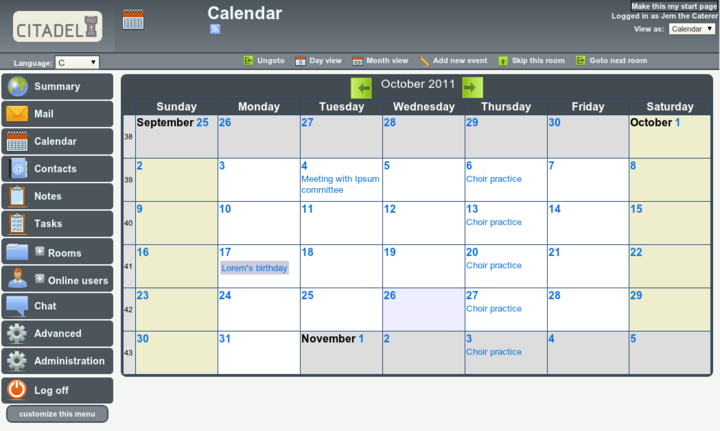
It is probably time for a screenshot (from the Citadel website), and then a discussion of how the setup works.  Once logged in to the application, this is how it generally looks, with a menu on the left and the subject of whatever you have selected in the main window.  Note:
  • login and viewing details in the top right
  • selection options for the current viewing window along the top menu-bar


Of the “Menu Selection Buttons” on the left, the private “rooms” for each user are:
  • Mail
  • Calendar
  • Contacts
  • Notes
  • Tasks
 

  • The “ +Rooms “ selection expands to the current “room” matrix.  These can be public or private, hidden or password protected, as determined when they are created.
  • “Advanced” is allocated on a per-user basis, depending on what permissions a user gets.
  • “Administration” is, obviously, allocated to an Administrator.
  • The menu is tailored to each user and setup.

At its core, Citadel is an old-style BBS.  Forums use the paradigm of “Floors and Rooms” of a building.  Each “Floor” has a broad subject, with each room being a more specific subject.  Where this differs from a standard BBS is that each room can take several forms.  The “room” could be a standard message topic discussion, or it could be a task list or a Blog.  So, in the case of a company project, there could be one floor named “Project” with separate rooms for message discussions, task lists, a blog talking of progress on issues and even perhaps a calendar.

Communication.  
  • Out of the box, Citadel offers email between registered users, with only the username required.  After it is configured, then conventional email is available.
  • There is an IM facility between logged in members.  There is more. Put a “Jabber” client such as Pidgin on your desktop and tell it about Citadel, and Citadel can act as a Jabber server connecting users.

Office Documents
  • Blog and Wikis.  Any room can be configured to act as it says.  I have to say though that I’ve yet to get the Wiki feature to work as I’d like (upgrade to 8.11 fixed that problem).
  • Calendars and Notes and Tasklists.  As it says, you can also nominate any room for these.  The “Notes” are sticky notes, and the Tasklists, while basic, can be categorised quite finely.

Networking
  • Citadel servers can be configured to network together simply by telling them about each other.  Users, rooms etc can be shared and a quite complex “social network” of sorts can be constructed.  These building blocks can link together to construct quite a complex system.  Impressive.

One final thing for the moment.  FLOSS Weekly Episode 209 is all about Citadel.  Worth the look.


Later...

Saturday, May 12, 2012

OnEye - Installing to Debian Wheezy on Virtualbox

v 0.35
13 May 12

Last post I said I had OnEye successfully installed.  Here is how I did it.

Initially when I thought of setting up a server, I thought of buying a low power piece of hardware and using that, but then realised I already had an under-utilised desktop that could easily run a server in the background using virtualisation - an opportunity to try out and learn a few skills in the process.

After updating Virtualbox to the latest version, I created a new virtual machine.  I've learnt a bit about setting the boot device since my last installation and so with the new virtual machine entry highlighted in the VirtualBox window, press the "Settings" button.  Press "Storage" and then click the CD icon under "IDE Controller", then on the right where it says cd/dvd drive, click the icon of the cd and from the dialog box, move to and select the iso image you want to boot from.  Now when you press "Start" it will boot from your downloaded ISO - in my case, the Debian Testing Netinstall ISO -

http://cdimage.debian.org/cdimage/daily-builds/daily/arch-latest/i386/iso-cd/debian-testing-i386-netinst.iso  .


Once I started the install, it came up with the standard debian install dialog - as contained in a number of Debian installation how-tos. The text installer is readable and when you think about the selections, they are logical.

  • English language
  • Where you are in the world (Australia for me)
  • American English keyboard

I chose the guided partitioning with separate partitions and accepted the defaults - I'd created an expandable 250 GB virtual machine so this is what the Debian Installer gave me:

/ 350mb
/usr  9 GB
/var  3 GB
/swap 2.1 GB
/tmp  398 mb
/home 233.5 GB

When Tasksel presented itself, I deselected the desktop and selected
  • Web server
  • SSH server 
  • Standard System Utilities

Later, just to be sure I also installed the apache2 package and restarted apache2.  I installed links2 and was able to confirm the webserver was functioning in both root and user accounts with

$ links2 http://localhost/index.html  and
$ links2 http://localipaddress/index.html

Unfortunately, I was unable to see the page on any other machine on the network.  A read of the Virtualbox documentation.  I was using NAT which was fine for general web browsing etc, however for using a server, I needed a Bridged adapter.  I shut down the server, changed the network adapter to "bridged" and restarted.  Fixed.

On an external computer, simply type the local ip address into the web-browser and it will be found - so that worked.

Next task was to assign a permanent ip address from my router.  Logged into it and assigned a local ip address based on the MAC address shown with "ifconfig" in the Virtual Machine.  Restarted networking and my new assigned ip address was done.

The default webserver install of debian also installs php5.  To that I added
  • php5-sqlite 
  • php5-imap 
  • sqlite 
  • gzip 
  • mc  (midnight commander)

As root, downloaded the latest oneye 0.9, moved it to /var/www/ and unzipped it.

# cd /var/www
# chmod -R 777 oneye/

on another computer, opened web browser  http://ipaddress/oneye

violas .....


There are an initial few questions, however they are pretty quickly sorted and the installation takes only a short time.  The only other thing you need to do is to edit the config file to make yourself the admin instead of root on the system.  Do this by going to:

# cd /var/www/oneye/
# vi settings.php
or whatever editor you like - I actually used mc for this

About 80% the way through the file is a comment that says

"// The real god of oneye users, the master of masters "
define('REAL_ROOTUSER','root');

change the "root" for whichever user you like.  Now when you set system preferences, you will get access to the Admin panel.


That's it.

Later 12 May ....

  • Installation of additional applications is dead simple.  Download the "eyepackage" to the admin desktop and click it - it installs.  Done.
  • Integration of FengOffice and SugarCRM is available, so instead of using "sqlite" as the database manager, it might be advisable to use "Mysql" in the initial install.
13 May

Something that shows my inexperience in servers.  It occurred to me this morning that the data from web users was being accumulated in /var rather than /home.  Obvious when you think about it, but when you are used to a desktop  system, all the users having their data in /home is ingrained.

So, need to download "PartedMagic" and "boot" from the iso to graphically resize the partitions of my virtual machine.  I could also use "parted" from the command line I guess and it would do me good to have a look at it.  In any case, another wrinkle in the saga and something else learned.

    Later....

    Wednesday, February 15, 2012

    Comparing Debian Netinstall with MSDOS

    v 0.2
    15Feb12

    Why would I bother comparing Debian Netinstall with MSDOS?  Sounds silly - HOWEVER - when you look at it in a historical perspective, it is quite interesting.  This has no secret how-to at the end, I was simply thinking this morning when I was doing my 3k walk ... "isn't that cool" ....

    In the '80s, MSDOS was king.  You got to pay good money to get a box and some diskettes that had a single user operating system that you could add to to get anything useful done.  Of course, if you were keen, you had the batch language and GWBASIC, but that was pretty much it.
    • If you wanted, you could pay more good money and get Turbo-Pascal, or MS-Basic or some other compiled language.
    • Perhaps you'd like to spend some more money and buy QNX - a multi-user system (that I think still exists).
    • How about a DOS Markup Text processing language?
    Now, Debian Netinstall (doesn't matter whether it is Squeeze or Wheezy, the principle is the same) - you get to download it for free.  Looking at what you get in what is considered today to be "a bootstrap loader" for the real system - well we are smothered in riches and don't even know it.
    • You get the same sort of screen those MS-DOS users got, except you have Bash - a powerful programming language in its own right - but that is the SHELL!   
    • zip/unzip .. bzip .. grep ... awk ... wow!
    • Multi-User / Multi-tasking out of the box.
    •  Not happy with Bash?  How about Perl?  Pretty hard to beat that!
    • Typesetting?  Groff.  At least as powerful as those systems you paid good money for, but .. yes .. it's free.
    • No edline here - Vim.  You may laugh, however Vim is a pretty damn powerful editor.  But if you don't like that, how about Nano - still better than anything MS included at that time.
     There's more, but you get my drift ..


    Later ...

    Monday, February 6, 2012

    Debian - Memory Footprints

    v 0.2

    Over the last few days, I've been having some fun working out exactly what you can do with the Debian netinstall ISO image.  It doesn't really matter whether you use the Squeeze or Wheezy image, the memory footprints will be about the same.

    For the record, I've been using Virtualbox to look at these results.
    • In a text-only system as described earlier you could do useful work in under 32 meg.
    • With Xorg and a simple window manger like Openbox, Fluxbox, Fvwm or the like, 64 meg.
    • Xfce 128 meg
    Remember, these memory footprints are minimums ... I had an Openbox session using 28 meg - then I opened Iceweasel and it went to 60 meg.  Even a terminal session will add 5 meg to your memory requirements.

    Now we come to more complex stuff.  A Linux system has many processes operating in the background and the memory observations above probably simplify that a little too much.

    So, a broad observation:
    • 1 gig ... use KDE or Gnome if you like (they are not for me)
    • 512 meg .. Xfce
    • 256 meg ... Xfce will do, but you will have more fun with Lxde / Openbox / Window Maker
    • 128 meg .. Openbox / Window Maker / Fluxbox / Fvwm will make you happy.
    • 64 meg ... Same as above but you will just have to be frugal.
    • 32 meg .. restricted use of window mangers or use the command line (ie no Xorg)
    Enjoy


    Later ...........

    Saturday, February 4, 2012

    Debian - Netinstall + Window Manager

    v 0.4.7

    Subsequent to my last post about the Netinstall as a console system, I experimented with installing Xorg and a Window Manger.

    " aptitude install xserver-xorg wdm wmaker xterm "

    as I found when I did the initial install, xterm was not installed and this made it all very difficult.

    18 meg unpacked ... reboot and works like a charm.  Now, having given the example, you could insert gdm3 or slim instead of wdm and fluxbox or whatever instead of wmaker.  I simply did this as an experiment.

    Since we are talking about Window Maker as a manager, here is a description as to how to configure it ...

    http://maketecheasier.com/create-a-great-window-maker-desktop/2009/02/14


    Later .....

    Update Monday 6 Feb (just after shaking my head in wonder at how you get to the Superbowl, then get caught out putting 12 men on the field .....)

    I also installed Fluxbox and Fvwm.  Both seems to have improved default values these days - but I also installed Conky from the repositories.

    Netinstall + X + Window manager (Fvwm) + conky .... under 35 meg memory useage!  And this from a standard Debian install - just choosing what you run.

    Others (approx):
    • Fvwm   34 meg
    • Fluxbox  32 meg
    • Window Maker  28 meg
    • Openbox-Session 24 meg
    • Add 5 meg for each terminal
    By way of comparison, the Wheezy Xfce install I did previously uses just on 92mb.

      Later....

      Debian - What is Netinstall Made Of?

      v 0.2

      Let us say that you are a curious person and you decided to do a Debian Netinstall (Squeeze or Wheezy, it matters not), but when you reached the "tasksel" screen you unchecked everything, so that nothing further would be installed.  What sort of system would you end up with?

      Well, it's actually not a bad console system.  Obviously there is no X, however you can start it up, and log in to a console.  Apt is set up with appropriate sources.list and you have Internet capability.

      If you want to list the packages, then:
            " dpkg --get-selections > selections.txt "

      as root will place a list of installed packages into the file " selections.txt " in the root account.

      Of course, if you want use this principle to duplicate what you have on one Debian install onto another, then you update the package database of installed packages with:
              " dpkg --set-selections < selections.txt "
      Once again as root, before doing an Aptitude update and upgrade.

      Now, looking through the packages in  " selections.txt " the included ones that caught my eye were:
      • The complete Dpkg / Apt / Aptitude toolset
      • bash
      • gcc
      • gnupg
      • groff
      • gzip
      • mawk
      • nano
      • perl
      • sed
      • tar
      • vim
      • wget
      In its own right, this represents quite a capable system, three programming languages, a typesetting system, excellent text editor, encryption, backup and an awk text reporting language.  Not bad and certainly fun.


      Expanding the System

      As part of the netinstall setup, the apt sources.list was configured for your preferred country, and even though this is only for the "main" sections, that is perfectly adequate if we wish to build our own custom Linux system.  We don't have a graphical client like synaptic, but we have the Debian tools we can use.  Aptitude provides a consistent front end to the Apt and Dpkg tools.

      "  aptitude search xorg | more "

      will return a list of those packages that are to do with xorg.  You can repeat the process with any search criteria you like to have a look at available packages you might like to install.

      To show details of a particular package you are interested in:

      " aptitude show xserver-xorg "

      You are now well on your way to installing Xorg to your machine.  To find a graphical login manager, try:

      "  aptitude search x-display-manager "

      and you'll be shown a number of packages on the last line that you might like to look at.  Likewise, you can look at window managers, desktops or whatever you like.


      Conclusion

      I haven't set out to provide a definitive set of instructions here, but to show what you can do when given a minimal system and the sorts of things you might like to poke around with.  With some care you can have just the packages you want, and a slim, fast setup.


      Later ............

      CrunchBang

      v 0.2.7

      A couple of nights ago, I was sitting in the bar at my hotel in Melbourne whilst consuming my accumulated drink vouchers, when an elderly lady who had clearly been enjoying the hospitality of the establishment started randomly haranguing groups of patrons as to the greatness of John Oppenheimer.  This enjoyable "impromptu theatre" was terminated when she was quietly led away.

      What has this to do with the subject?  Everything.  Mr Oppenheimer was one of the major contributors to the ultimate "CrunchBang" at the aptly named "Trinity Site".  So CrunchBang stuck in my mind and the more I read about it, the more I liked it (the Linux Distro that is).

      This minimalist distro is built directly upon a Debian Squeeze Netinstall and uses the Openbox window manager.  The Debian Backports and a Crunchbang repository are also used.  It is installed using a modified Debian Installer script, and like Ubuntu and a few other distros, the sudo command is used for administrator privileges.  A "cb-welcome" bash script enables additional functionality to be installed, however I found it failed when the technique to detect an internet connection simply wouldn't work.  Iceweasel release (the latest) is included along with Flash.

      I installed it in Virtualbox just as described in a previous post, though with a smaller "disk" and less memory.

      This is definitely not a beginner-friendly distro.  Straight up, editing of the sources.list is needed to tailor it for closer Debian repositories, and commenting out the "check-internet-connection" line in the "/usr/bin/cb-welcome" script is needed.  Simple, but a show-stopper for many.

      HOWEVER

      I REALLY like Crunchbang.  Why?  Crunchbang is built the way I think many more distros should be built that expand or modify a parent distro (in this case Debian Stable).  It uses the parent distro as a base and modifies it with additional repositories and scripts.  At all times you can go back and use the documentation of the parent distro.  This is truly using the "standing on the shoulders of giants" technique and benefits both the user and the Distro maintainer by (in this case) using what Debian has provided and improving just what needs to be tidied up for what that person wants.  No re-invented wheels needed.


      Later .....

      Update:
      The initial install uses 70 meg memory at idle and just under 1.9 gig disk space.

      Update 11 Feb.
      I encourage you to visit the Crunchbang support forums.  There are some really good posts with some great advice for modifying systems (how to for Xfce for example) or setup Conky (which I've become somewhat enamoured with).
      In addition, Openbox has started to grow on me.  Combined with the Debian Menu system it is really quite slick.

      Saturday, January 28, 2012

      Debian Wheezy - Web Browsers

      v0.3.1

      I've been working with Debian Wheezy with Virtualbox.  It occurred to me that I've long ago stopped talking about how to install Debian within VBox, and have transferred to talking about Wheezy itself.  Hopefully naming the posts about what they really are will be more productive.

      Whilst purists might disagree, I think that using synaptic is a wonderful and easy tool to explore the world of Debian packages.  The sections are nicely laid out and it is easy to see which packages meet your search criteria .. and who knows, you might find some wonderful gem you never thought existed.

      Take Web Browsers for example ......

      When you search on that, some really interesting variants appear.
      • Chromium from which Google Chrome is derived.  And it accepts the Google extensions.
      • IceApe.  The Debian version of SeaMonkey which is the Mozilla version of Netscape.
      • Dillo.  It is a cool, FAST web browser.  Yes, a little basic but did I mention is is FAST.
      • Conkeror.  Emacs.  But this one does graphics.
      • W3m.  Emacs.  But this one doesn't.
      • Links2.  Just on 2 meg and it is not bad ...
      • Lynx
      Whilst there are a few more, I just wanted to illustrate what you can find.  I know there are the standard Gnome and KDE browsers, but at the  moment I'm inclined to avoid them since upon installing them you are obliged to install the majority of the appropriate desktop and whilst this might be fine for you, that is not what I'm looking at here.

      I guess what I'm trying to point out is that the Debian repository of software is pretty extensive, and whilst I'd like to get back to configuring the overall system and finding those tips and tricks that seem elusive, there is so much to be found in Synaptic.


      Later ........

      Further to the above ....

      I did of course negelect Debian's Firefox - IceWeasel which is provided in the latest variant.


      :)