Showing posts with label Server. Show all posts

Wednesday, February 6, 2013

PC-BSD 9.1 Linux Jails, VirtualBox, Citadel Groupware

v 0.2
6 Feb 13

The last few days, I've been playing with PC-BSD Jails via Warden.  I've found that the BSD Jails work just great, as I've mentioned previously, however I've been having problems installing servers on a Debian Linux Jail.  Some servers install without a hitch, and others just won't let the outside world see them. 

A case in point is installing Citadel Groupware.  In the Linux Jail, the two components can't talk to each other - Webcit, which provides the outward facing web interface, can't see the Citserver to talk on TCP 504.  Installing on Virtualbox, no problems - it installs without a hitch.

Another example is the installation of Web Servers.  Apache - nope.  Nginx - worked out of the box.  In all cases, the installation was using the standard Debian packages from the Main repository.

Debian Jail - Install Script

The way Debian is installed in a Linux Jail, is using the debootstrap command.  The way this is set in the install script is simply:

debootstrap squeeze

However, there are several architectures for Debian, in particular, the ones we want use the FreeBSD kernel .. should we include the architecture we want?  So, it would look like:

debootstrap --arch kfreebsd-i386 squeeze
or
debootstrap --arch kfreebsd-amd64 squeeze

I haven't really seen any difference, however I wonder ...

Citadel Again

Maybe I take a little longer for the concepts to sink in, but I've finally satisfied myself that the Debian packages do the same installation (albeit with files in different places - because it is Debian).
  • The servers are installed
  • The "citadel" user is created to run the server
  • The init scripts are sorted.
The outcome of all this is that when the machine (virtual or real) is started, Citadel starts as well.

How to re-configure the Citadel Server?  There is a setup script in
"/usr/lib/citadel-server"
Run that script if you need to and you can adjust ports, and add an admin user.

Be aware, that Webcit ignores your setup instructions.  Get a text editor and edit
"/etc/default/webcit"
to your liking.


Later .........


Friday, February 1, 2013

PC-BSD 9.1 - More Jails and Linux

v 0.3.1
1 Feb 13
2 Feb 13
4 Feb 13

As I mentioned a couple of posts ago, most things are easy in hindsight, but maddening when you have to work them out.  Another such example I have found with PC-BSD Jails under the "Warden".  Rather than try and organise what I've found into little chunks, this will be a narration of the adventure.

I started learning about Jails using a Linux Jail.  I used an IP address within the router address space.  All was well until I tried to communicate with services within the Jail that I thought I'd started.  Not only that, but when I check the router's "attached devices" list, my Jail was nowhere to be seen.

I remembered there were two tutorial articles about Jails in BSD Magazine, one on Linux Jails in issue 12/12 and a tutorial on installing OwnCloud in a Standard Jail in issue 9/12.

The article on Linux Jails went into NAT configuration on the host and editing a few configuration files - I must confess I found this puzzling as a requirement since everything else about PC-BSD organisation of Jails was so automated.  Eventually I went back to the beginning and went through the tutorial setting up a standard BSD Jail.

What I found with the BSD Jail was that there were several other tools to manage these Jail types - including a Process manager, where I could make sure the processes I wanted were started.  That is where I started remembering the list of ports being monitored in the Linux Jail ....  Also, it was about that time I chanced on reading a statement in the PC-BSD forums where the poster pointed out that Warden does quite a few things in the background.

So ...

I cloned my BSD Jail, giving one an IP in the router address space, and the other another address in another address space.  I made sure the Apache process was started in each Jail and that the firewall had opened port 80.  Then I went to another computer on my network and simply typed in the IP address of each jail in a web browser.  The Jail with the router address space address worked immediately and Apache talked back.  The other one, not.

My conclusion as to Jail IP address:
  • If you are simply starting a Jail - give it an IP in the router address space.
  • If you are going to configure NAT on the host system, use another address space.
How do you find the Jail if the router does not know about it?  When you address your Jail, the router queries each of its attached machines.  When it queries the host machine, that machine recognises the Jail address and passes the request on to the Jail.  So the router doesn't have to know about the Jail, it just has to be able to have an address in its address space that it can give to the host machine that then knows.

NOW .. I went back to my Linux Jail - with its IP address in the router address space.  I installed an SSH server, made sure it was started (the listened port came up on the info tab).  I opened the SSH port on the firewall.  I then went to another machine on the network,

ssh (ip address)

The Jail replied!  Victory!

So you can now configure your router to talk to a Jail just like any other attached machine.  I would guess you could even assign a static IP to a Jail, using the mac address of the host machine.

A final note about Debian Jails.  When you install the Jail, there are several configuration tasks that are not taken care of that would normally be done so in a Debian Install, but are not.  That is my next little task to take care of with a Debian Linux Jail ....


Later ............

PS
For Debian,
  • an easy way to manage startup services is to load package " rcconf " and use that to graphically set services.
  • to set the default Locale, install package  " locales " and run " dpkg-reconfigure locales " to select and set your desired Locale.


Tuesday, June 12, 2012

Wicd Wireless, Port Forwarding

v 0.2
12 Jun 12

Xfce Wireless

I installed Debian Wheezy onto my old IBM T31 laptop this morning.  The netinstall via a wireless network went smoothly.  I installed Xfce rather than Gnome, so the Wireless network manager was Wicd.  When I booted up, no wireless network was found.  Dead.  It should have detected at least two networks.

The fix was amazingly simple.  Open the Wicd window, Options, General.  There is an entry there for the wired "eth0".  In the Wireless entry, enter "wlan0".  

It works.

Port Forwarding and Blocked Ports

I have been driven to distraction the last week or so trying to port forward port 80 to allow some friends to play with a demonstration I've set up.  I blamed my Apple Time Capsule, particularly when I saw so many complaints that people were unable to port forward.  I bought another router, and then found THAT would not forward port 80.  Grrrrr.

I rang up my ISP over the matter and they said that they did not block port 80.  (yeah ... riiigghhhhttt)

They do.

So, I set the demo server to work on port 2000 and forwarded it from the router.

VICTORY!!

Another expensive lesson.  But I did bumble my way through it.


Later .......

Tuesday, May 29, 2012

The Law and TLD, The Cloud and Home Servers

v 0.22
12 Jun 12

I've recently had a few disparate threads of the Cosmos come together to lead me down a new line of interest with my Computing.  It all started a few months ago when I was reading my daily dose of "Slashdot" and has finished with me starting to set up a Home Server for myself.

The Law

Whilst the Slashdot article was about the US Government seeking the extradition of a UK Student, the issue was their assertion that all ".com , .net , .org " etc domain names were subject to US Law, no matter where the servers or businesses or organisations were located.  Now, whilst the current actions involve copyright infringement allegations, I can see that this could easily be extended to other areas of the law,  were it convenient for those in power.  A link to a relevent article:

http://www.theinquirer.net/inquirer/news/2083906/claims-com-net-websites-jurisdiction

Whether the legalities of this assertion by the US Government are shown to be valid or not, what it means (to me, anyway) is that if you host a website with one of these top level domains, then you potentially must comply with US Law.  You may, for example, run a business in one particular country using such a website, so not only do you need to comply with your own country's laws, you must also comply with those of the US.  Some (legitimate) Canadian businesses are already discovering this.

The lesson I've taken away from this is that if I need a business or other serious website, then a domain name from maybe my own country would be a better decision.

The Cloud

The Cloud is certainly a convenient place to store data, and in all normal circumstances, your data should be quite safe - Google has just received security certification for its services.  Dropbox, whilst convenient, doesn't store your data encrypted, whilst SpiderOak does.  If you are paranoid and want to use Cloud storage, then SpiderOak would be great.  Or encrypt your data on ANY Cloud device.

Of course the problem comes when your provider has their server seized by whichever Law Enforcement agency, because of some other entity which also uses that server ........

Home Servers

It almost feels to me that the concept of keeping your own data is making a comeback - perhaps not for all, but "the Cloud" is not necessarily the best move in all circumstances.  There are some really interesting Web applications that can be hosted on your own server.  Several I'm fascinated with are "OwnCloud", "OnEye", "Diaspora" and "Citadel".  I easily set up "OnEye" on a test virtual server at home, and did the same with "Citadel".

Routers

When I tried to demonstrate Citadel to an organisation I was a member of though, I found I couldn't get my router (Apple Time Capsule) to open any ports to allow this.  Googling for a solution gained me nothing other than finding more than a few others with the same problem and the best I could find was that it was a flaw in the firmware.

Bad Time Capsule .... Bad Bad Time Capsule.

So out of that, I thought maybe time for a "proper" router.  I'd recently seen an interesting "Category5TV" Episode 166 dealing with DD-WRT firmware and a Netgear router.  In the end, I chose to get a WNDR 3700 Netgear - for it's firmware flashing capabilities and the wireless range it offered.

* Subsequently I found that my ISP was blocking some ports - it wasn't helped by them denying it when I called to see if this was in fact happening.  Unfortunately I had to fall back on detective work to discover this (and then have my Nephew say "yes, of course they do, didn't you know?").  So Ultimately, I could have saved my money and continued with the Time Capsule by using unblocked ports.  Sigh

Server Hardware

As I mentioned before, I'd been playing with servers within Virtualbox Virtual Machines on my Desktop - now whilst at the time I knew my desktop wasn't the best machine to use as a server if only for its power consumption, I was prepared to live with this for a short while, however once I started thinking about the router problem, my mind drifted back a week or so to when Dell sent me an advertisement for what I considered to be a cheap desktop that would be suitable.  Of course, I wouldn't be buying the Dell because I had plenty of screens and keyboards already and saw no point in buying anymore, not to mention that I had no use for Windows on my server.  But research into the components did lead me to an interesting setup.

Motherboard   Asus P8H61-M LX Rev 3
CPU                Intel i-3 2120
Memory          8 gig
HDD               Western Digital 2 TB Caviar Green
DVD drive

This machine is about 10 times as fast as a P4 3.0 box I already have and uses less power.  How much less?   Testing I've seen indicates the machine should use between 50 and 100 watts under most conditions.  Using this as a server rather than one of the previous two I've mentioned would be a minimum saving of 200 watts.  This works out at roughly 5kwhr per day or over $1 per day where I live.  It would pay for itself in electricity charges in a year.

Server Software

Having worked out the hardware, I'm planning on replacing an old P4 desktop that is used by the family.  I intend having it used as a desktop, with Virtualbox providing servers in virtual machines.

Debian "Wheezy"  64bit
Xfce Desktop
Virtualbox

At the moment, I intend setting up one or two virtual machines as Citadel servers - one for the family and one for my organisation to evaluate.  After that, well there are a number of interesting projects that are available, even within the Debian repositories.

I think that is enough for now ... I shall report back with my installation adventures.


Later ...........

Tuesday, May 22, 2012

Citadel Groupware - Some Possibilities

v 0.3
23 May 12

I was thinking this morning that Citadel provides the possibility of some really interesting implementations.  It is easy to install (especially in Debian), and they provide up-to-date debs from their own repository.  You can even have it running in a Virtualbox instance.

I strongly recommend you install Citadel via a Debian install and use the Citadel repository.  I was using the Wheezy version which had severe flaws in Wiki and File rooms - fixed when I updated to the latest version.

Don't like how it looks?  Easy .. just adjust the CSS and have it look any way you like.  They give you the page structure on the website and a CSS example to use and modify.

It is easy to set up a secure (you get https out of the box) network of Citadel servers (don't forget, this is not a client, it is a series of SERVERS that you can view as localhost on your web browser on the same computer if you like) and have your own secure independent email network - share projects, share files all over https.  Use a dynamic DNS provider and you can have a mobile node that can make connection from a hotel and the network sharing is up and running again.

These are just a few thoughts, however I'm sure there are more uses.

In case you are wondering what I'm saying about an independent email network...  Out of he box, Citadel will send email to users of the independent system based on their username.  Consequently, if you simply connect two Citadel servers together, then you can share email between the servers directly within that network.  Add connect via https and you are up and away .....

Finally, what servers are included in Citadel?  Here is what I've worked out so far:
  • Web server (webcit)  (http  https)
  • Mail Server (SMTP POP3 IMAP)
  • Calendar Server
  • Jabber (IM) Server (XMPP)

Later....

Sunday, May 20, 2012

Citadel Groupware

 v 0.22
24 May 12

Citadel is different - on first glance, it looks like a BBS with aspirations above its station.  I’ve had a love/hate relationship with this Groupware from the first time I saw it in the Debian repository and read about it.  

It has history … extensive history.  It grew out of the old BBS systems of Dial-up modem times, and still has a text mode that replicates that, although normal interaction is through a web browser and the “Webcit” server application.

Citadel looks, at first, a little dated and I’ve found user documentation a little sparse, however I’m slowly “getting” it and starting to really like it.  One thing I especially like is that it has several security advantages over other packages, notably immunity to PHP and SQL attacks.  It has its own inbuilt servers and it does not use PHP or MySQL.

So, how does Citadel qualify for the compliments I’ve seen about it?

Whilst it may seem a little “clunky” at first glance (it can be modified), its power lies in its simplicity of concept and gentle learning curve.  It is easy to set up, and you can start out with a very simple configuration and expand as you become familiar with how to use it.  It is like being given a pile of different lego blocks and discovering how to assemble them into ever more complex objects.

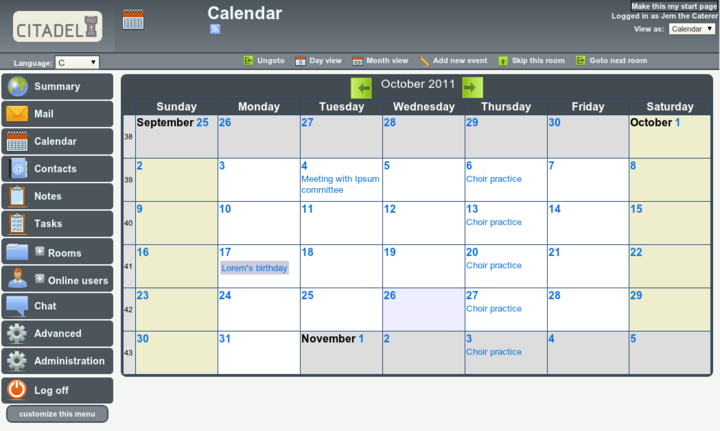
It is probably time for a screenshot (from the Citadel website), and then a discussion of how the setup works.  Once logged in to the application, this is how it generally looks, with a menu on the left and the subject of whatever you have selected in the main window.  Note:
  • login and viewing details in the top right
  • selection options for the current viewing window along the top menu-bar


Of the “Menu Selection Buttons” on the left, the private “rooms” for each user are:
  • Mail
  • Calendar
  • Contacts
  • Notes
  • Tasks
 

  • The “ +Rooms “ selection expands to the current “room” matrix.  These can be public or private, hidden or password protected, as determined when they are created.
  • “Advanced” is allocated on a per-user basis, depending on what permissions a user gets.
  • “Administration” is, obviously, allocated to an Administrator.
  • The menu is tailored to each user and setup.

At its core, Citadel is an old-style BBS.  Forums use the paradigm of “Floors and Rooms” of a building.  Each “Floor” has a broad subject, with each room being a more specific subject.  Where this differs from a standard BBS is that each room can take several forms.  The “room” could be a standard message topic discussion, or it could be a task list or a Blog.  So, in the case of a company project, there could be one floor named “Project” with separate rooms for message discussions, task lists, a blog talking of progress on issues and even perhaps a calendar.

Communication.  
  • Out of the box, Citadel offers email between registered users, with only the username required.  After it is configured, then conventional email is available.
  • There is an IM facility between logged in members.  There is more. Put a “Jabber” client such as Pidgin on your desktop and tell it about Citadel, and Citadel can act as a Jabber server connecting users.

Office Documents
  • Blog and Wikis.  Any room can be configured to act as it says.  I have to say though that I’ve yet to get the Wiki feature to work as I’d like (upgrade to 8.11 fixed that problem).
  • Calendars and Notes and Tasklists.  As it says, you can also nominate any room for these.  The “Notes” are sticky notes, and the Tasklists, while basic, can be categorised quite finely.

Networking
  • Citadel servers can be configured to network together simply by telling them about each other.  Users, rooms etc can be shared and a quite complex “social network” of sorts can be constructed.  These building blocks can link together to construct quite a complex system.  Impressive.

One final thing for the moment.  FLOSS Weekly Episode 209 is all about Citadel.  Worth the look.


Later...

Thursday, May 17, 2012

Debian - Package Management Atrocities

v 0.2
17th May 12

Flush with my success at installing "onEye" and a LAMP capability to my Wheezy server, I thought I'd have a look at the Citadel Groupware, provided in the "Main" Wheezy repository.  All went well, and I answered the configuration questions to the best of my ability.  I elected to use Apache as the web server rather than the internal one provided.  Unfortunately, I couldn't find how to run Citadel in the web mode (it ran fine in BBS command line mode).  It eventually turned out that the Webcit web client listens on port 8504 (from memory).  In any event, think carefully how you are going to use Citadel in concert with other web applications.

I decided to reconfigure the application and ran:
# dpkg-reconfigure citadel-suite

this did nothing and before I found out what I SHOULD have done, I ended up deleting some of the configuration files after mistakenly thinking I'd purged the whole thing.

What I SHOULD have done was:
# dpkg-reconfigure citadel-server citadel-webcit

Seems if I'd re-configured these packages that are called by the meta-package, all would have been well.  Lesson here.

note:  There may be some minor errors above as I've written it from memory, however the overall lesson remains.  look at re-configuring the correct packages ......


later ...

Saturday, May 12, 2012

OnEye - Installing to Debian Wheezy on Virtualbox

v 0.35
13 May 12

Last post I said I had OnEye successfully installed.  Here is how I did it.

Initially when I thought of setting up a server, I thought of buying a low power piece of hardware and using that, but then realised I already had an under-utilised desktop that could easily run a server in the background using virtualisation - an opportunity to try out and learn a few skills in the process.

After updating Virtualbox to the latest version, I created a new virtual machine.  I've learnt a bit about setting the boot device since my last installation and so with the new virtual machine entry highlighted in the VirtualBox window, press the "Settings" button.  Press "Storage" and then click the CD icon under "IDE Controller", then on the right where it says cd/dvd drive, click the icon of the cd and from the dialog box, move to and select the iso image you want to boot from.  Now when you press "Start" it will boot from your downloaded ISO - in my case, the Debian Testing Netinstall ISO -

http://cdimage.debian.org/cdimage/daily-builds/daily/arch-latest/i386/iso-cd/debian-testing-i386-netinst.iso  .


Once I started the install, it came up with the standard debian install dialog - as contained in a number of Debian installation how-tos. The text installer is readable and when you think about the selections, they are logical.

  • English language
  • Where you are in the world (Australia for me)
  • American English keyboard

I chose the guided partitioning with separate partitions and accepted the defaults - I'd created an expandable 250 GB virtual machine so this is what the Debian Installer gave me:

/ 350mb
/usr  9 GB
/var  3 GB
/swap 2.1 GB
/tmp  398 mb
/home 233.5 GB

When Tasksel presented itself, I deselected the desktop and selected
  • Web server
  • SSH server 
  • Standard System Utilities

Later, just to be sure I also installed the apache2 package and restarted apache2.  I installed links2 and was able to confirm the webserver was functioning in both root and user accounts with

$ links2 http://localhost/index.html  and
$ links2 http://localipaddress/index.html

Unfortunately, I was unable to see the page on any other machine on the network.  A read of the Virtualbox documentation.  I was using NAT which was fine for general web browsing etc, however for using a server, I needed a Bridged adapter.  I shut down the server, changed the network adapter to "bridged" and restarted.  Fixed.

On an external computer, simply type the local ip address into the web-browser and it will be found - so that worked.

Next task was to assign a permanent ip address from my router.  Logged into it and assigned a local ip address based on the MAC address shown with "ifconfig" in the Virtual Machine.  Restarted networking and my new assigned ip address was done.

The default webserver install of debian also installs php5.  To that I added
  • php5-sqlite 
  • php5-imap 
  • sqlite 
  • gzip 
  • mc  (midnight commander)

As root, downloaded the latest oneye 0.9, moved it to /var/www/ and unzipped it.

# cd /var/www
# chmod -R 777 oneye/

on another computer, opened web browser  http://ipaddress/oneye

violas .....


There are an initial few questions, however they are pretty quickly sorted and the installation takes only a short time.  The only other thing you need to do is to edit the config file to make yourself the admin instead of root on the system.  Do this by going to:

# cd /var/www/oneye/
# vi settings.php
or whatever editor you like - I actually used mc for this

About 80% the way through the file is a comment that says

"// The real god of oneye users, the master of masters "
define('REAL_ROOTUSER','root');

change the "root" for whichever user you like.  Now when you set system preferences, you will get access to the Admin panel.


That's it.

Later 12 May ....

  • Installation of additional applications is dead simple.  Download the "eyepackage" to the admin desktop and click it - it installs.  Done.
  • Integration of FengOffice and SugarCRM is available, so instead of using "sqlite" as the database manager, it might be advisable to use "Mysql" in the initial install.
13 May

Something that shows my inexperience in servers.  It occurred to me this morning that the data from web users was being accumulated in /var rather than /home.  Obvious when you think about it, but when you are used to a desktop  system, all the users having their data in /home is ingrained.

So, need to download "PartedMagic" and "boot" from the iso to graphically resize the partitions of my virtual machine.  I could also use "parted" from the command line I guess and it would do me good to have a look at it.  In any case, another wrinkle in the saga and something else learned.

    Later....

    Friday, May 11, 2012

    EyeOS v OnEye - Your Computing Desktop in the Cloud

    v 0.2
    11 May 12

    For those who like looking at the last page .. I now have a onEye setup working on my home network.  It was easy to set up (using a Debian Apache webserver in Virtualbox) and is pretty neat.

    Now to what I was about to talk about.

    A couple of weeks ago, I was watching an episode of "The Linux Action Show" where they were talking about personal alternatives to cloud computing services.  One of these was the EyeOS product.  I was interested and had a look.  Whilst I really wanted to like this, I had the impression that the people there had moved solidly towards their "Professional" product (good on them) and their "2.5" release was just missing things that I would have liked.  I couldn't quite put my finger on it, but the feeling was there.

    A bit more research and I was starting to get a feeling for what was going on.  It seems that the EyeOS has forked at the 1.9 branch as a community project, renamed "onEye" and that many people prefer this branch to what has been produced to the 2.x series.  I have the feeling that the 2.x series would appeal to businesses, whereas the 1.9 series is more for the community.  The thing that really got me interested in looking at onEye rather than EyeOS was an evaluation which suggested that installation was less than ideal in the EyeOS implementation, and that the 2.x series was incompatible to many add-on applications that had been developed.

    So what is it about all this that you should be interested about?  Effectively, when you log on to onEye / EyeOS, you are logging on to a computer desktop in the cloud.  Think Dropbox with a desktop and applications.  They have a sync applicaton along with some standard apps that are supplemented by a whole swag of others.  There is even a web browser in the standard setup.  Now why would you want a web browser within a web browser?  Well for a start, all browsing traces are left in the cloud.

    Whilst reaction time for this desktop over the Internet is entirely dependent upon your connection speed, on a home network it is quite snappy and could be really useful for organising the sometimes chaotic things that happen on different computers at home - particularly in centralising backups of files we don't want to use.  (of course .. ownCloud is a contender for that as well).


    Later ....

    Tuesday, January 11, 2011

    Server - eepc - VNC

    v 0.1
    To achieve viewing a remote desktop, you need a VNC SERVER on the machine you want to view, and a VNC VIEWER on the machine you want to view with.

    I had a look at a couple of tutorials and used a couple of VNC servers, however I found that TightVNC was the most successful.


    So, on the eeepc Debian Squeeze setup:

    # aptitude install tightvncserver
    $ tightvncserver :1
    $ tightvncserver -kill :1

    I found there was an unusual problem with running Xfce4 and wanting to have Xfce4 on the VNC viewer.  I've included the link above that I found explaining this, however in the meantime, I installed Fluxbox and used that setup similarly to as explained in the tutorial ... except I had "fluxbox" instead of "gnome-session".

    Now to run a session:

    $ tightvncserver :1

    Go to another machine, fire up tightvncviewer or "chickenoftheVNC" on the Mac, enter the IP address you want, and the screen then go.

    (networkaddressofthemachine):(screennumber)
    for example
    192.168.0.15:1

    A final note.

    You'll observe that so far all this relies on there being a log-in on the server.  We shall get round this, but one step at a time.  It is also far from secure, just showing proof of concept at this stage.


    Later .......

    Monday, January 10, 2011

    Server - Thoughts

    v0.1

    I've been finding my little eeepc server rather entertaining, and I'm learning a lot.

    SSH

    I can log in to the server from the local network and from the internet using my IP address, having port-forwarded the router ports.  Using the Secure Copy function of SSH I'm looking into copying files between machines.

    IP Address

    Dynamic DNS providers - the free accounts seem to expire if you don't use them for  a month or so, so that is a consideration.  If you don't turn your router off, then your IP address should stay the same and you can use that.

    Opera Unite

    Opera has what is effectively a free dynamic dns service together with FTP, Web servers, Media streaming, Web Cam broadcast etc through their web browser than I'm going to have a better look at.  It turns your computer into a server with no special configuration.  May well serve for what most people would find useful.

    VNC

    Definitely a function I need to investigate.  I did have a play with it a few months ago, but now is the time to get it resurected.


    Some more later ........

    Sunday, January 9, 2011

    Server - eeepc - Debian

    v 0.2.3

    I know, I'm predictable.  I loaded Debian Squeeze onto the EeePc.  I've had it on there for a while, in fact, having eliminated the original Xandros install.  Two valuable resources for loading Debian onto the EeePc are:
    The eeepc does not have a DVD drive, so when I originally purchased it, I had also purchased an external DVD drive.  It has proved useful for a number of tasks over the years.  I first prepared the SSD using my gparted program on bootable CD.  The eeepc 701 has 3 partitions on its SSD.  I left the small one alone and simply combined the 2.5  and 1.5 gig partitions into one.  I did not use a Swap partition.

    I installed Debian Squeeze using the Xfce install CD.  I know that perhaps a GUI was not needed, but at that stage I was after a lightweight desktop, and after deciding to keep the machine for a server, just left it there.  It all installed fine using the standard installer, the only addition being to install the Gnome Network Manager, and make the config file correction noted previously in the Debian Wiki.  The WiFi connection to my router works fine.

    Xfce recognises the external drive however it drops off occasionally.  In any case, if this is to be a server, then mounting the drive in the fstab file is a necessity for reliability.

    Next, sort a static IP within the network.  All the tutorials I found simply configured the wifi entry for a specific IP address.  I took a different route, making a note of the mac address of the wifi card using " ifconfig " and writing down the hardware address.  Then I went to the network router and assigned a specific IP address to that mac hardware card.

    Now to be able to access the server from another machine on the network.  The simplest and most straightforward way is to install a secure shell server on the machine, and then log in from another one with the ssh client.  For windows, use putty, and for mac or linux, just use ssh.  Using aptitude on the eeepc Debian install:

    aptitude install openssh-server openssh-client

    Once the installation is complete, the ssh-server is running as a service on your machine.  There are plenty of tutorials about how to connect with ssh, so I won't repeat them here, needless to say, I can connect from my mac by just entering:

    ssh username@(network-ip-address)

    If you have modified your hosts file, then you can substitute the hostname for the IP address.  Enter your password if you haven't set up authentication and you can log on as an appropriate user.  Yes, you do need to set up your user account on the server first, since all you are doing is logging on to it as a user, but from over the network.

    So there we are, we now have our eeepc server up and running on a static network IP and a SSH server running.  Not much, but it is getting there.


    Later .....

    Update - Manipulate NTFS file system:

    In my case, the drive I have for my server is an external 2.5 inch drive.  Since they all come formatted to ntfs, I have two choices, accept ntfs or reformat.  I shall accept ntfs, so we need to install the ntfs driver:

    aptitude install ntfs-3g

    Then we need to make a mount point in the .. er .. /mnt directory ..

    mkdir /mnt/external

    Now we need to edit the fstab file

    In fstab, add a line (obviously similar to this - you will have to check your disk drive device)

    /dev/sdb1  /mnt/external   ntfs-3g   defaults   0  0

    Done!

    Friday, January 7, 2011

    Server - eeepc - Hardware

    v 0.1

    I have an Asus eeepc 701 netbook, which I bought several years ago when they were first released.  I used it extensively over the next year as my travel computer and it did a great job.  I left the default Xandros Linux operating system on it, installing Debian Lenny onto an SD card as an alternative - that worked really well.

    The poor machine has been lying dormant for a while, and the thought of using it as a home server has been niggling at me.  So what does it have going for it?

    • 4 gig SSD
    • Processing power about a third of my Pentium 4 3.0 Desktop computer
    • 1 gig memory (I added some extra)
    • 3 USB ports
    • SD Card Slot
    • Ethernet port
    • Wireless networking
    • Very low power useage

    The final part of the mix is storage - the internal SSD will be used almost exclusively for the operating system, so I had a thought about external HDD units.  I finally settled on a Seagate 2.5 inch 1 terrabyte drive.  It is powered exclusively through the USB port, so will draw significantly less power than a 3.5 inch drive.

    Obviously this will be no powerhouse home media centre, however I can see that it would be useful in so many other areas, particularly since it will cost so little to run.  Of course the most important thing as far as I am concerned is that I have a low cost test bed to learn on.

    Well, there I have my hardware setup.  Works smoothly and sits there unobtrusively.


    Next, the Software and options to think about.....